Product·November 10, 2026·4 min read
OpenAI Approves Our ChatGPT Plugin for QuickBooks Desktop: How to Install It

Daniel Emaasit
CEO, Logistify AI
TLDR
Is there a ChatGPT plugin for QuickBooks Desktop in ChatGPT's plugin directory? Yes. On November 10, 2026, OpenAI approved Logistify for QuickBooks Desktop, and it is now published in ChatGPT's plugin directory as "Logistify QuickBooks Desktop", by Logistify AI. To install it, open Plugins in ChatGPT's side menu, search for QuickBooks Desktop, select Logistify QuickBooks Desktop and select Install plugin, then sign in with your Logistify login. ChatGPT can then look up customers, stock, orders, invoices and payments in your company file, and, if you allow changes, create sales orders and send them to QuickBooks, asking before each change. It comes with Logistify's Starter plan, $99 a month per company, and is included in Core, Business and Enterprise.
OpenAI Approved Our QuickBooks Desktop Plugin for ChatGPT
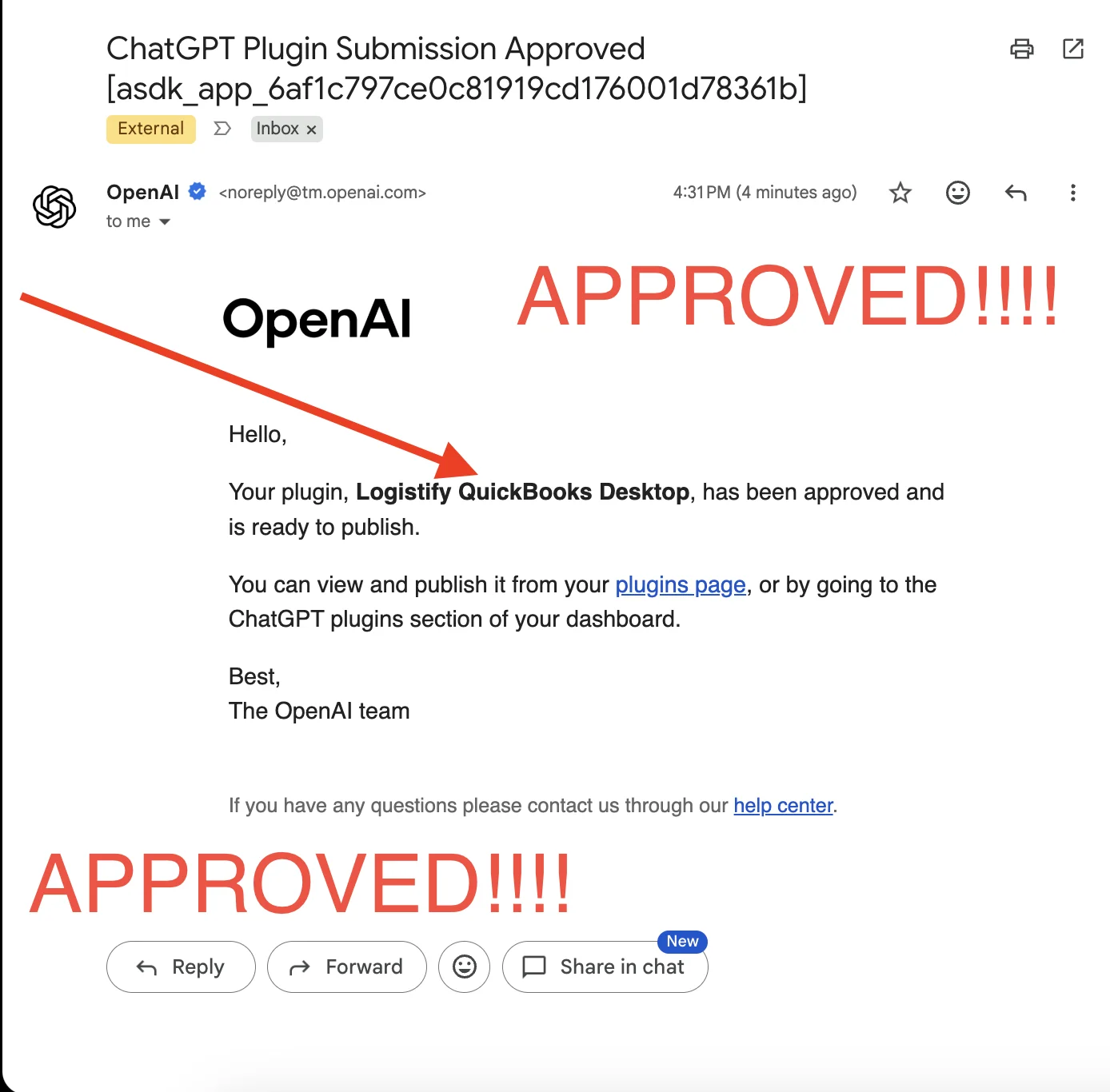
On November 10, 2026, OpenAI emailed us that Logistify for QuickBooks Desktop had been approved and was ready to publish. We then published it, so it is now in ChatGPT's public plugin directory under the name "Logistify QuickBooks Desktop". Until now, a ChatGPT workspace admin had to add it by hand as a custom MCP server. Now anyone whose ChatGPT account allows plugins can find it and install it in a few clicks.
What Does the QuickBooks Desktop Plugin Do in ChatGPT?
It lets ChatGPT look up customers, inventory items and stock, sales and purchase orders, vendors, invoices with what is still owed, and payments received in a QuickBooks Desktop company file connected to Logistify. If you tick Allow changes when you connect, it can also make the four changes Logistify's own screens make: create a new sales order from your chat request and send it to QuickBooks, send a sales order already saved in Logistify, approve a supplier's new date on a purchase order, and approve a customer payment match. ChatGPT asks before each change. It works through the QuickBooks Web Connector your company already uses with Logistify, so QuickBooks has to be open on the company's Windows computer.
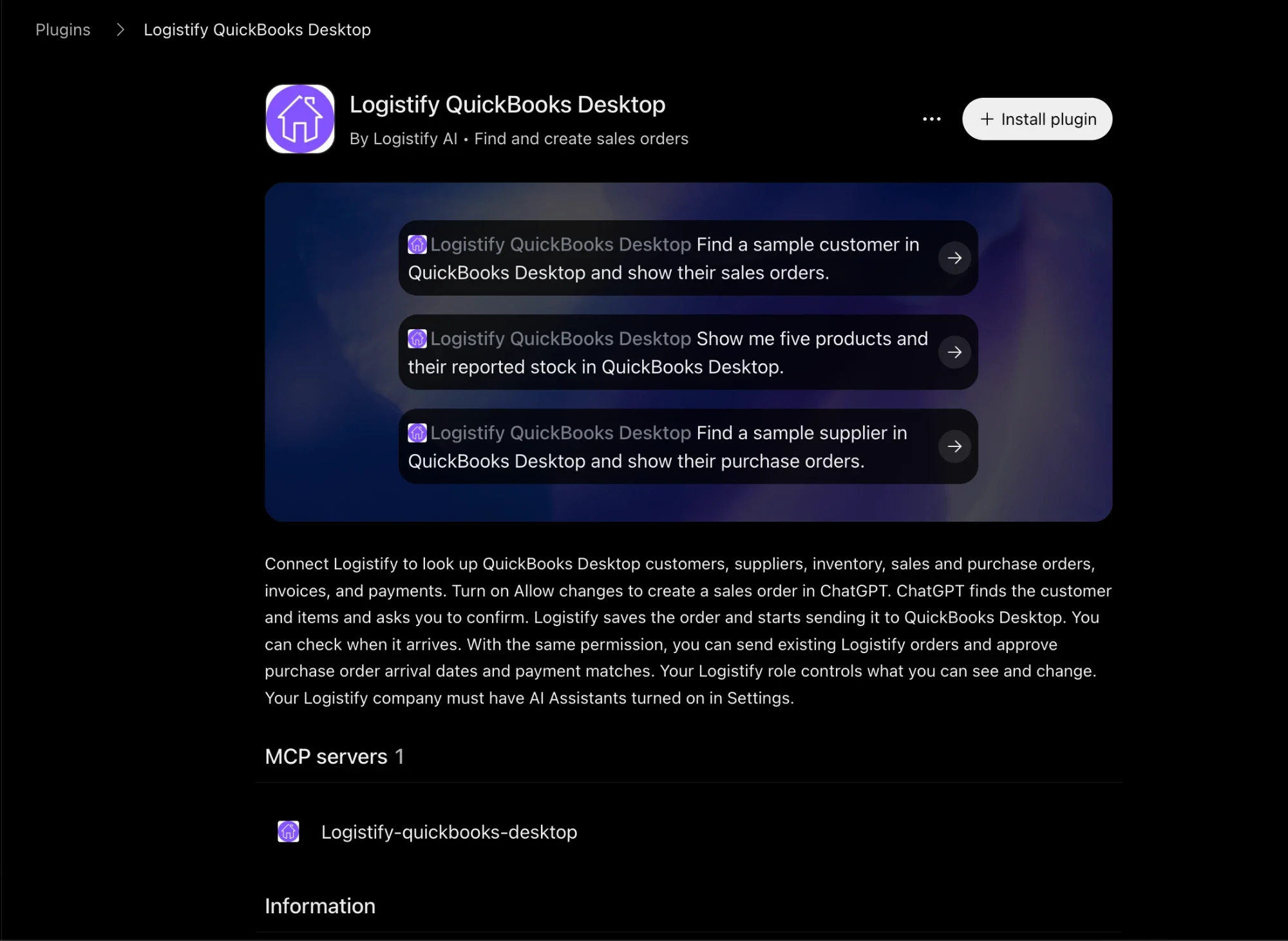
Our QuickBooks Desktop plugin page lists every tool and what each one does.
How Do You Install the QuickBooks Desktop Plugin in ChatGPT?
Before you start, your company needs a Logistify account with your QuickBooks Desktop company file connected, and a Logistify admin needs to turn on Assistant Connectors in Logistify's Settings. Then:
Further reading
The Coordination Tax: The $1.6 Trillion Cost of Running Supply Chain on Human Hands
The CEO's thesis on why every manual handoff in your supply chain is a hidden tax — and why AI Agents are the only way to eliminate it.
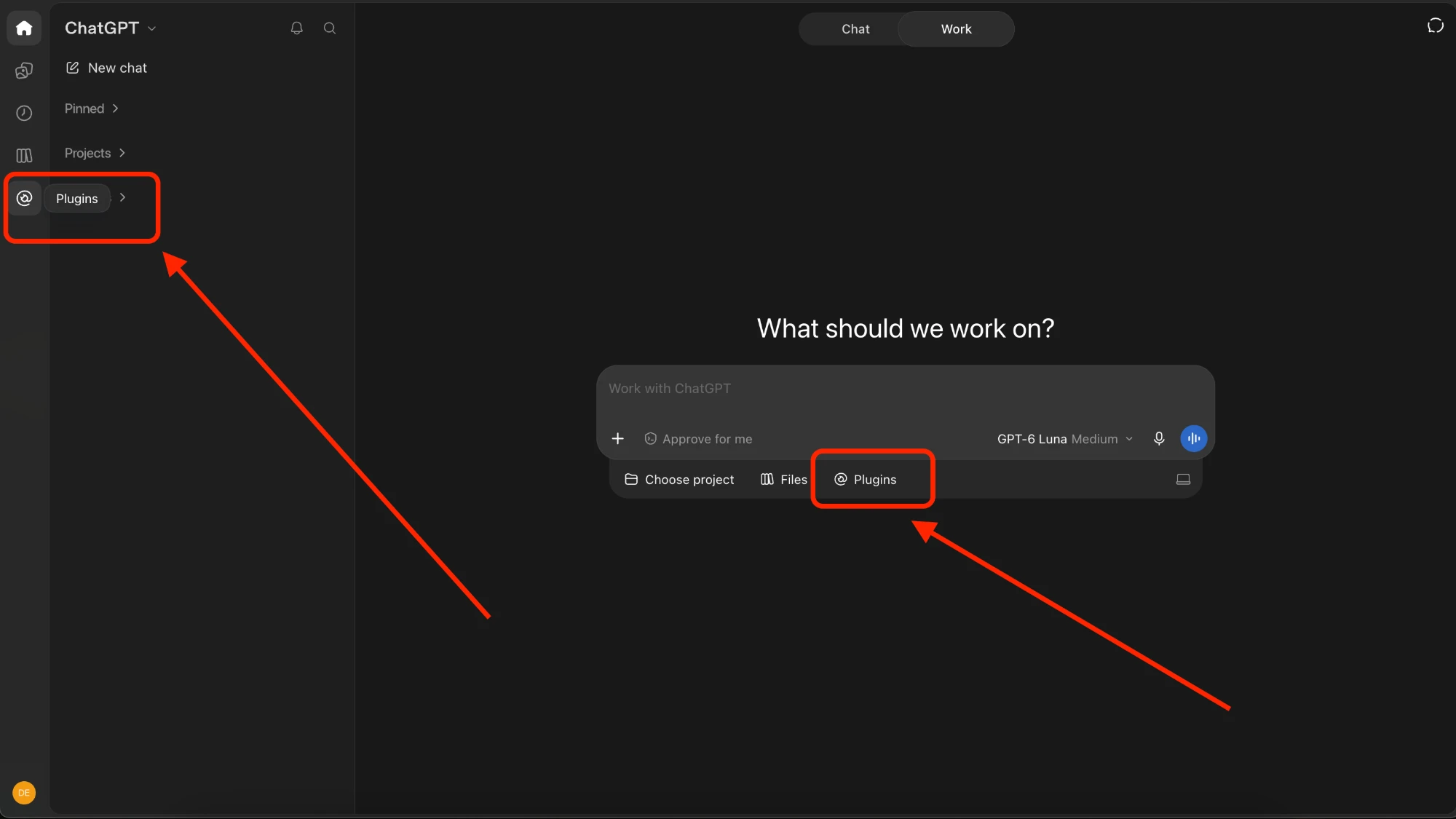
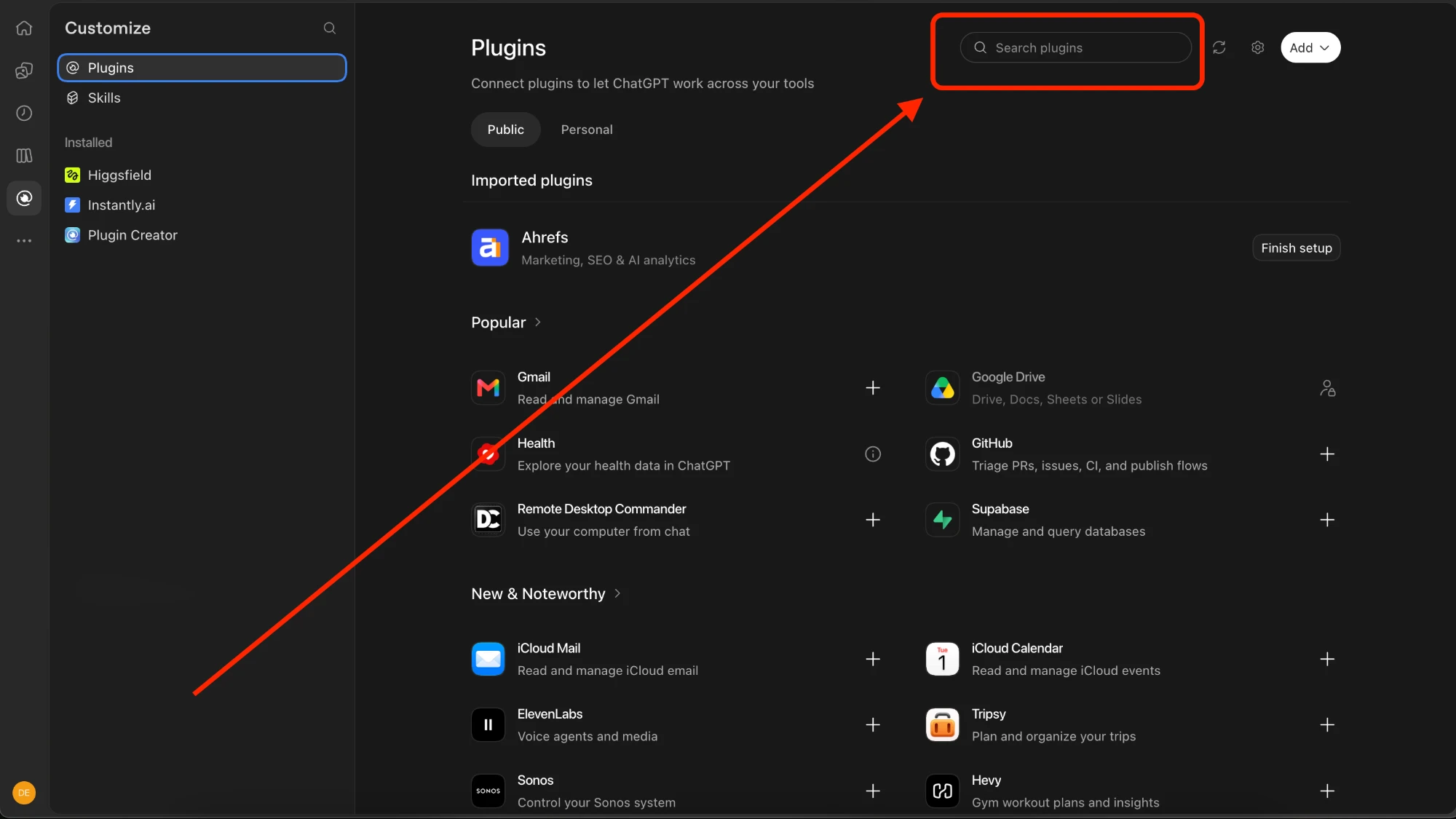
Read the memo- 1In ChatGPT, open Plugins in the side menu, or select Plugins under the message box.
- 2In the Search plugins box, type QuickBooks Desktop.
- 3Select Logistify QuickBooks Desktop, by Logistify AI, with the purple house icon.
- 4Select Install plugin.
- 5Sign in with your Logistify login and choose your company.
- 6Tick Allow changes on Logistify's connect page if ChatGPT should be able to make changes. Left unticked, ChatGPT can read but can't change anything.
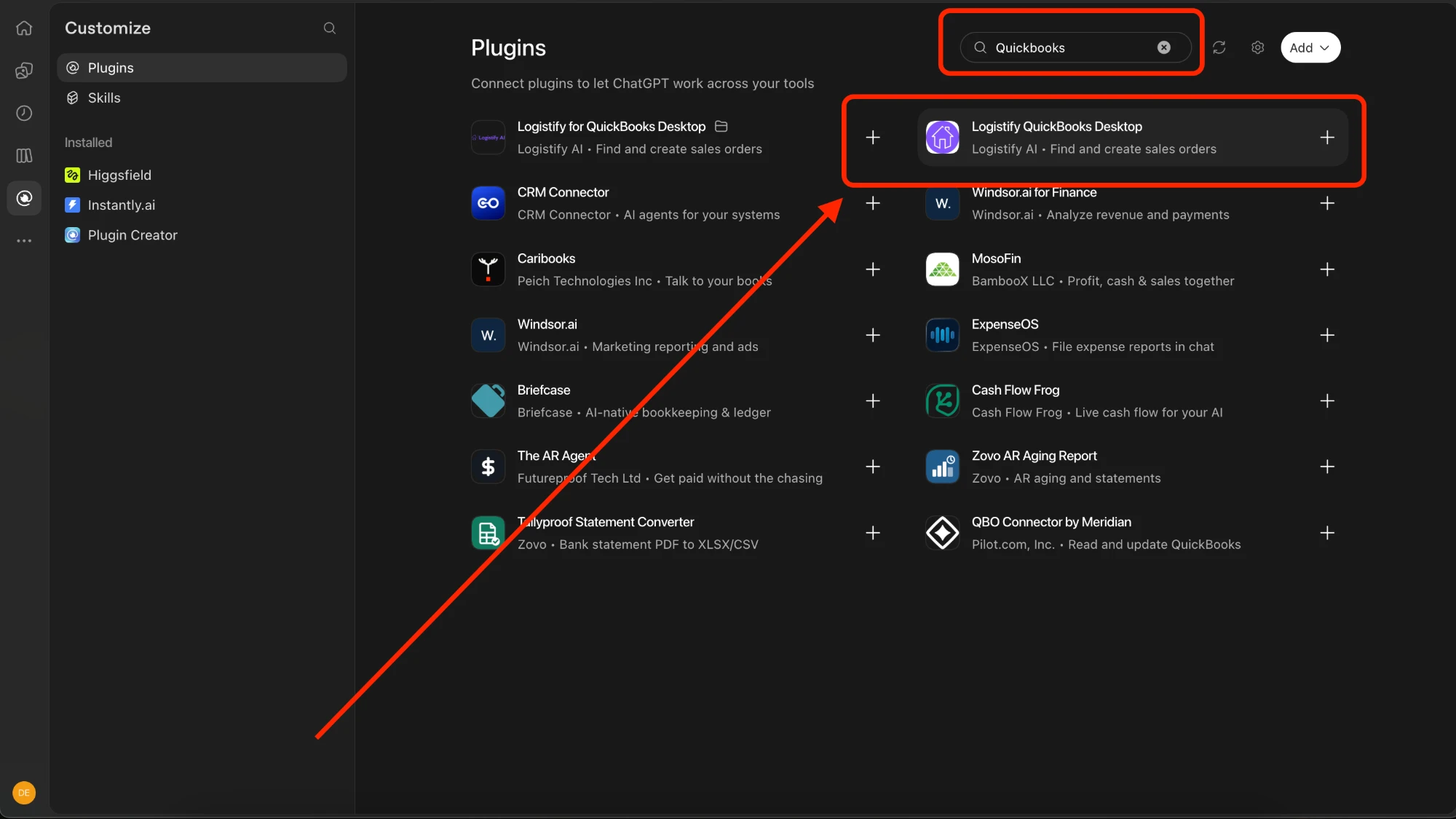
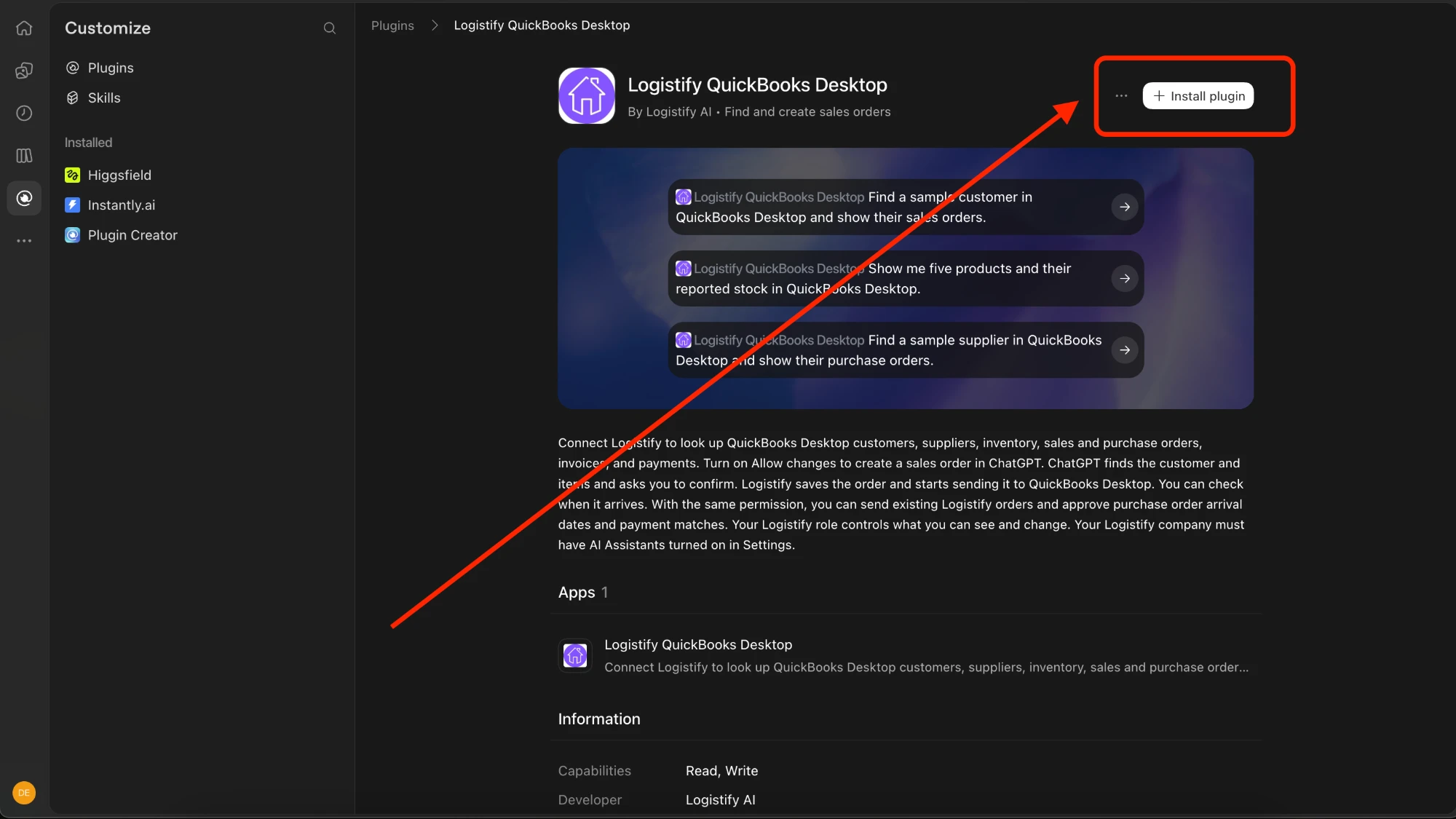
After that, ask ChatGPT about your QuickBooks Desktop data in any chat, for example "Show me the open sales orders for Acme Supply." ChatGPT uses the plugin when your question needs it, and you can also pick it by typing @ and its name.
Which ChatGPT Plans Can Install It?
OpenAI's help says the plugin directory is available on every ChatGPT plan, on web, desktop and mobile, and that whether you can install a given plugin depends on your plan, workspace, role and region (checked November 13, 2026). In a ChatGPT Business or Enterprise workspace, an admin decides which plugins members can install, so ask your admin if you can't find it.
Can You Still Add It by Its MCP Server Address?
Yes. A ChatGPT Business or Enterprise workspace admin can still add it as a custom MCP server at https://mcp.logistify.ai/quickbooks-desktop/mcp. In Claude, which doesn't list it in its directory yet, you add the same address as a custom connector. Each assistant's setup page has the steps.
What Doesn't It Do?
- It doesn't create or change any QuickBooks record beyond its four changes: no invoices, bills, items or customers, and no other edits or deletes.
- It doesn't guess. A customer or item that isn't already linked to QuickBooks in Logistify stops the order, and ChatGPT tells you why.
- It can't read QuickBooks data, or get a change into the company file, while QuickBooks is closed on the company's Windows computer.
- It isn't built for company-wide totals. Results come a page at a time, so use a QuickBooks report when you need a total.
- It isn't made or endorsed by Intuit. Intuit's own QuickBooks app in ChatGPT connects to QuickBooks Online only.
Want ChatGPT working with your QuickBooks Desktop data?
Starter is $99 a month per company, and the plugin is included in Core, Business and Enterprise. Tell us about your QuickBooks Desktop setup and we'll get your company connected.
Frequently Asked Questions
Ready to automate your supply chain?
Join manufacturers and distributors automating their operations with Logistify AI.