Product·November 3, 2026·13 min read
Logistify for QuickBooks Desktop: Connect ChatGPT and Claude to Your Company File

Daniel Emaasit
CEO, Logistify AI
TLDR
Can ChatGPT or Claude connect to QuickBooks Desktop? Yes, through Logistify for QuickBooks Desktop, a connector (an MCP server) for company files connected to Logistify. Either assistant can look up customers, inventory items and stock, sales and purchase orders, vendors, invoices with what is still owed, and payments received. If you tick Allow changes when you connect, it can also make the four changes Logistify's own screens make in QuickBooks: create a new sales order from your chat request and send it, send a sales order already saved in Logistify, approve a supplier's new date on a purchase order, and approve a customer payment match. It asks you before each change and creates or edits nothing else. QuickBooks has to be open on the company's Windows computer.
What Is Logistify for QuickBooks Desktop?
Intuit's QuickBooks connectors in ChatGPT and Claude sign in to an account in Intuit's cloud: QuickBooks Online, and for Claude also Intuit Enterprise Suite. A QuickBooks Desktop company file lives on your own computer or server, so those connectors have nothing to reach. We went through each of them in our comparison of QuickBooks AI connectors.
Logistify already works inside Desktop company files. It enters customer orders as sales orders, records customer payments against open invoices, and follows up with suppliers on open purchase orders, all through the QuickBooks Web Connector on the company's Windows computer. Logistify for QuickBooks Desktop gives ChatGPT and Claude that same connection. They read the company file, and with your permission they make the same four changes Logistify's own screens make, including creating a new sales order you describe in chat. Nothing new is installed on the QuickBooks computer.
Technically it is an MCP server. MCP, the Model Context Protocol, is the open standard ChatGPT and Claude use to call tools on another service. Its address is https://mcp.logistify.ai/quickbooks-desktop/mcp.
What Can ChatGPT and Claude Do in QuickBooks Desktop?
They can read the company file and, if you allowed changes, make four changes in it, from creating a new sales order to approving a payment match. The connector has 18 tools: 14 read and 4 make changes. Eleven read QuickBooks. Three read Logistify's own lists: its sales orders and their QuickBooks status, purchase order date updates waiting for approval, and customer payments with a suggested invoice match. Those three lists work even while QuickBooks is closed. You ask in ordinary words and the assistant picks the tool. In Claude's connector settings you can also set each tool to run without asking, ask for your approval first, or never run.
| Tool | Reads or changes | What it does | Good to know |
|---|---|---|---|
| Find QuickBooks customers | Reads | Finds customers by part of the name or by exact QuickBooks ID | If several customers match, the assistant asks you to pick one |
| Find QuickBooks inventory items | Reads | Inventory items and their stock quantities, as QuickBooks reports them | Inventory items only, not service or non-inventory items. A missing quantity means unknown, not zero |
| List QuickBooks sales orders | Reads | Sales orders for one or more customers, or by order number, with or without the lines | Needs a customer or an order number |
| Find QuickBooks vendors (suppliers) | Reads | Vendors, found by part of the name | Contact details aren't included |
| List QuickBooks purchase orders | Reads | A vendor's purchase orders, or specific ones by number, with received quantities and an open, closed or unknown state | Unknown means QuickBooks didn't report it, not that the order is open |
| Show one QuickBooks purchase order | Reads | One purchase order with its lines and received quantities | Found from the purchase order list |
| List QuickBooks invoices | Reads | Invoices by customer, number or date, paid or unpaid, with what is still owed and the payments and credits applied | Needs a customer, an invoice number or a date range |
| List payments received in QuickBooks | Reads | Payments customers made, by customer, reference number or date, with the invoices each one paid | Card details are never included |
| List QuickBooks deposit accounts | Reads | The bank accounts and the Undeposited Funds account a payment can be deposited to | Names only, with no balances or account numbers |
| List QuickBooks company files | Reads | The company's QuickBooks files | Used when a company has more than one file |
| Show the connected Logistify account | Reads | The Logistify account and company the connection uses | Shows which company you're connected to |
| List Logistify sales orders and their QuickBooks status | Reads | Sales orders saved in Logistify, and whether each one is in QuickBooks yet | Works even while QuickBooks is closed |
| List purchase order date updates waiting for approval | Reads | New dates suppliers promised on open purchase orders, waiting for someone to approve them | Works even while QuickBooks is closed |
| List customer payments with a suggested invoice match | Reads | Customer bank payments and the invoices Logistify's Accounts Receivable Service suggests they pay | Works even while QuickBooks is closed |
| Create a sales order and send it to QuickBooks | Changes | Creates a new sales order in Logistify from your chat request and sends it to QuickBooks | The customer and each product must already be in Logistify and linked to QuickBooks. A line with no price anywhere is refused |
| Send a Logistify sales order to QuickBooks | Changes | Sends an order already saved in Logistify to QuickBooks as a new sales order | Refused if the order is already in QuickBooks, cancelled, waiting for a product or price review, or has a customer or product not linked to QuickBooks. A second send within five minutes is refused |
| Approve a purchase order date update | Changes | Copies the supplier's promised date into the QuickBooks purchase order's expected date | Quantity and price never change |
| Approve a customer payment match | Changes | Approves the suggested match, and Logistify then records the bank payment in QuickBooks against the matched invoices | A match can't be approved twice |
Results come one page at a time: 25 records unless you ask for more, up to 150. A page isn't the full list or a company total, so ask for the next page when you need it. QuickBooks data is read live. If QuickBooks doesn't answer, the assistant tells you so instead of showing older records.
Questions and requests to try
- Find our customer Acme in QuickBooks and show their open sales orders.
- Which of Acme's invoices from October are still unpaid, and how much is left on each?
- Which payments did Acme make in October, and which invoices did each one pay?
- Show our open purchase orders with Harbor Supply and the lines that haven't been received yet.
- How many units of item 4410B do we have in stock?
- Create an order for Acme: 20 of item 4410B, delivered next Friday.
- Which Logistify orders aren't in QuickBooks yet?
- Send order 1042 to QuickBooks.
- Which purchase order date updates are waiting for approval?
- Approve the date update on purchase order 5521.
- Show the customer payments with a suggested match, then approve the one from Acme.
It works best for questions about a named customer, supplier, item, order or date range. Sales order and purchase order questions need a customer, a supplier or an order number, and invoice and payment questions need a customer, a number or a date, so one request never pages through the whole company file. For company-wide analysis, such as slow-moving stock across every item, an exported report is still the better tool.
How Do Changes Work?
A change happens only when the person who connected ticked Allow changes and you say yes to that change. The assistant shows exactly what will change and waits for a clear yes, one item at a time. The change then goes through the same checks as Logistify's own screen and starts the same work.
Say you ask, "Send order 1042 to QuickBooks." The assistant looks up order 1042 in Logistify, tells you its customer and total, and asks before sending it. After your yes, the send starts and the order is queued for QuickBooks. The assistant tells you it has started, then checks the order's QuickBooks status, and it doesn't say the order is in QuickBooks until the status shows it.
A new order works the same way. Ask, "Create an order for Acme: 20 of item 4410B, delivered next Friday." The assistant finds Acme with Find QuickBooks customers and 4410B with Find QuickBooks inventory items, then reads the order back: the customer, each product and quantity, the prices and the delivery date. After your yes, Logistify creates the sales order and sends it to QuickBooks, the same way its Sales Orders screen and Push button do. The assistant then checks the order's QuickBooks status before saying it reached the company file.
Each change runs the checks Logistify's own screen runs:
- Create a sales order and send it to QuickBooks builds the order in Logistify and sends it as a new QuickBooks sales order. Each line uses the price you give. Without one, it uses the QuickBooks price list or the customer's price when your company turned that on, else the product's price saved in Logistify, and a line with no price anywhere is refused. The customer and products must already be in Logistify and linked to QuickBooks. Logistify matches them only by exact ID or code, never a guess, and refuses an order with a missing, archived or unlinked line, giving the reason. A duplicate guard and the customer's order number stop a retry from creating a second order. Order dates are your company's calendar day.
- Send a Logistify sales order to QuickBooks creates a new sales order from one already saved in Logistify. Logistify refuses an order that is already in QuickBooks, cancelled, waiting for a product or price review, or has a customer or product not linked to QuickBooks. A second send of the same order within five minutes is refused too.
- Approve a purchase order date update copies the supplier's promised date into the QuickBooks purchase order's expected date. Quantity and price never change.
- Approve a customer payment match approves the match Logistify suggested, and Logistify then records the bank payment in QuickBooks against the matched invoices. A match can't be approved twice.
QuickBooks has to be open on the company's Windows computer for a change to reach the company file. Beyond these four, the connector never creates or changes a QuickBooks record: no invoices, bills, items, customers or purchase orders, and no edits or deletes.
How Do You Connect Claude to QuickBooks Desktop?
In Claude, you add it as a custom connector by its web address. Anthropic's help says custom connectors work in Claude, Cowork and Claude Desktop on Free, Pro, Max, Ultra, Team and Enterprise plans, and that Free plans can have only one (checked November 3, 2026).
Team and Enterprise plans
- 1An Owner or Primary Owner opens Organization settings, Connectors, and chooses Add. On Enterprise, someone with a custom role that allows it can do this too.
- 2Hover over Custom and choose Web.
- 3Name the connector Logistify for QuickBooks Desktop and enter https://mcp.logistify.ai/quickbooks-desktop/mcp.
- 4Under Authentication, choose Sign in when needed. Under OAuth client, choose Register automatically. Leave Request headers empty.
- 5Each member then opens Customize, Connectors, finds the connector and chooses Connect. That opens the Logistify sign-in, where they choose the company and whether to tick Allow changes.
Pro, Max and other individual plans
Open Customize, Connectors, choose Add, then Add custom connector, and follow steps 3 to 5 above.
How Do You Connect ChatGPT to QuickBooks Desktop?
Further reading
The Coordination Tax: The $1.6 Trillion Cost of Running Supply Chain on Human Hands
The CEO's thesis on why every manual handoff in your supply chain is a hidden tax — and why AI Agents are the only way to eliminate it.
Read the memoLogistify for QuickBooks Desktop is listed in ChatGPT's plugin directory, so you install it from inside ChatGPT. OpenAI's help says the directory is available on every ChatGPT plan, and that whether you can install a given plugin depends on your plan, workspace, role and region (checked November 13, 2026).
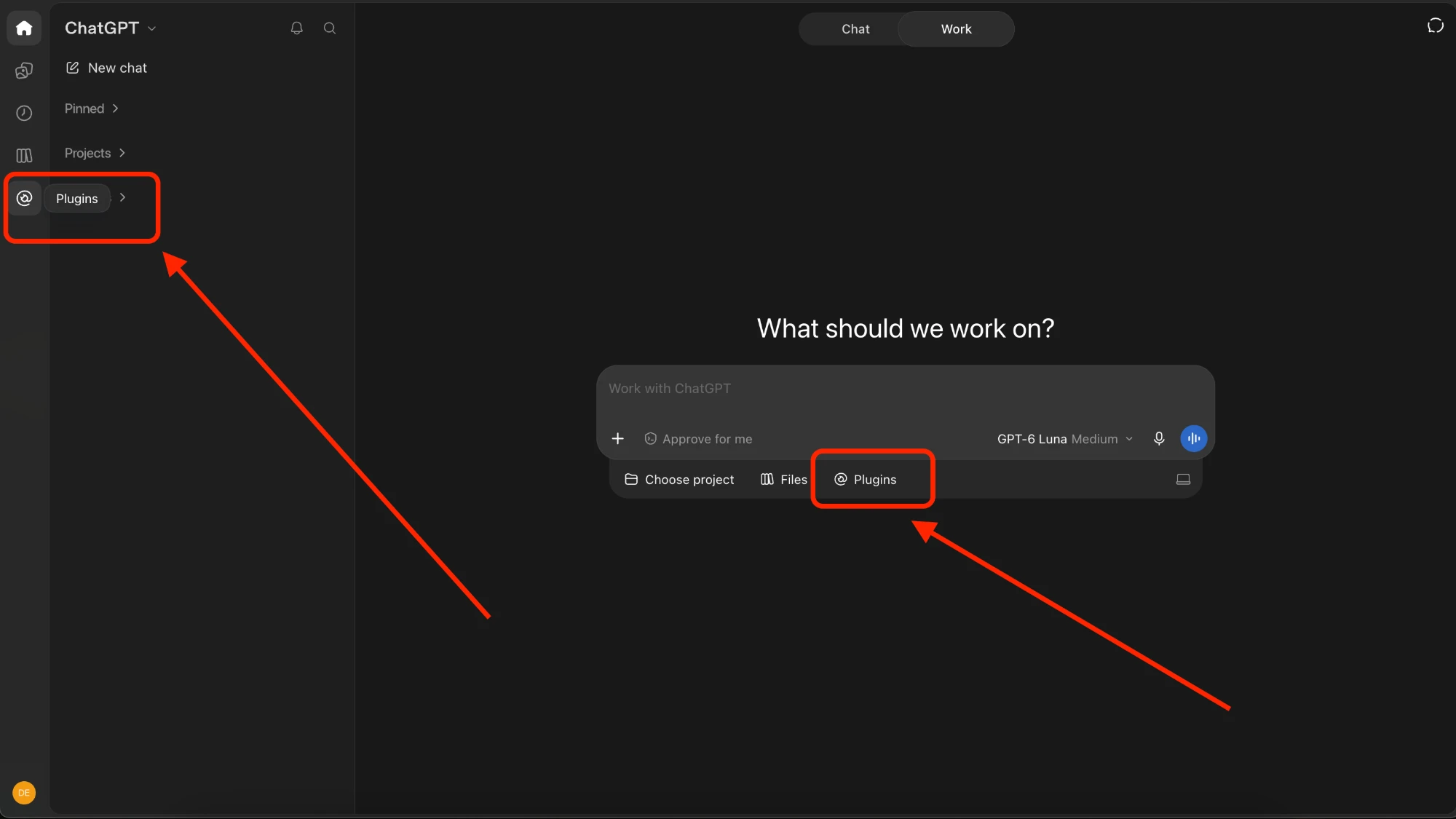
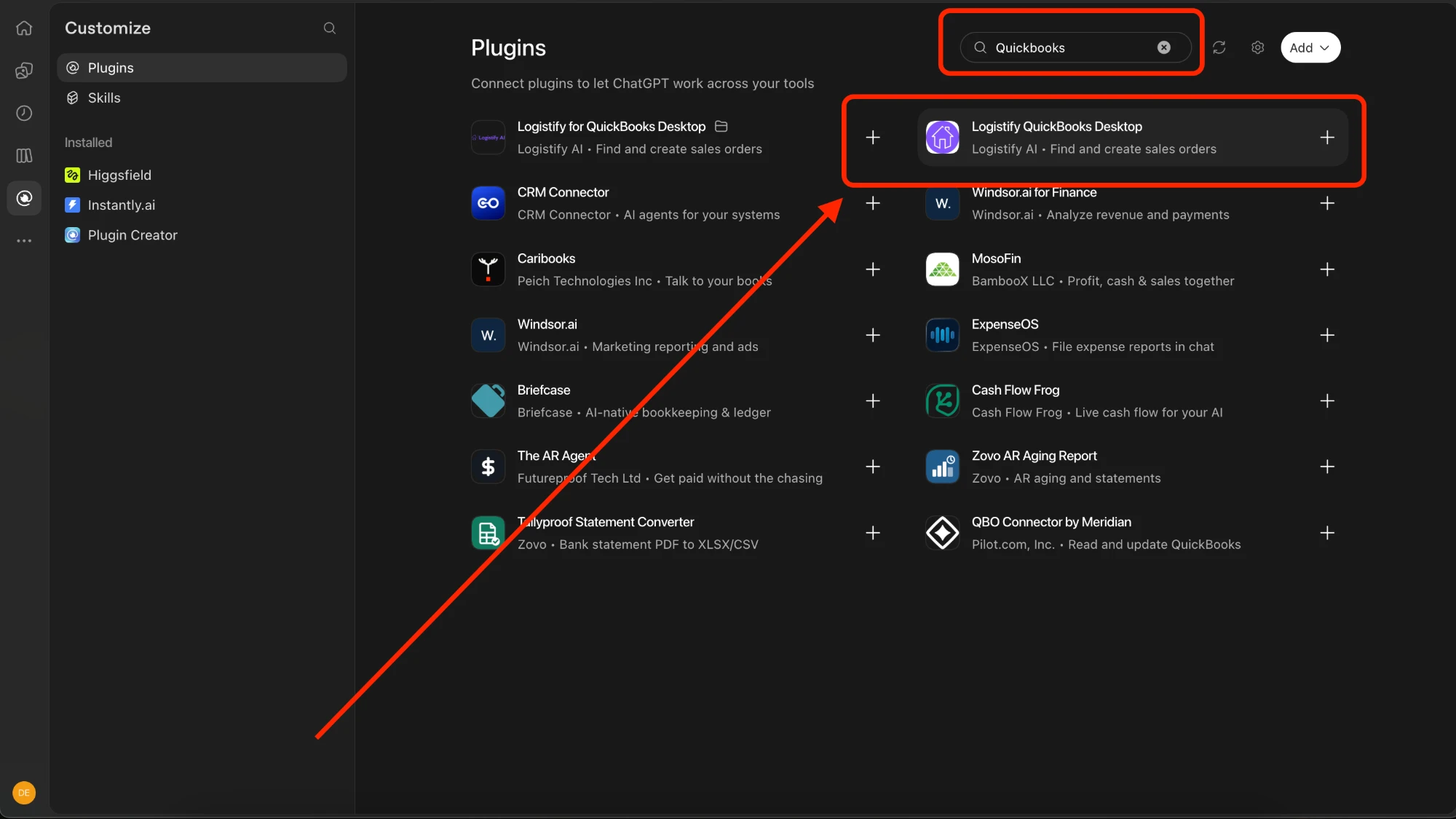
- 1In ChatGPT, open Plugins in the side menu (or select Plugins under the message box).
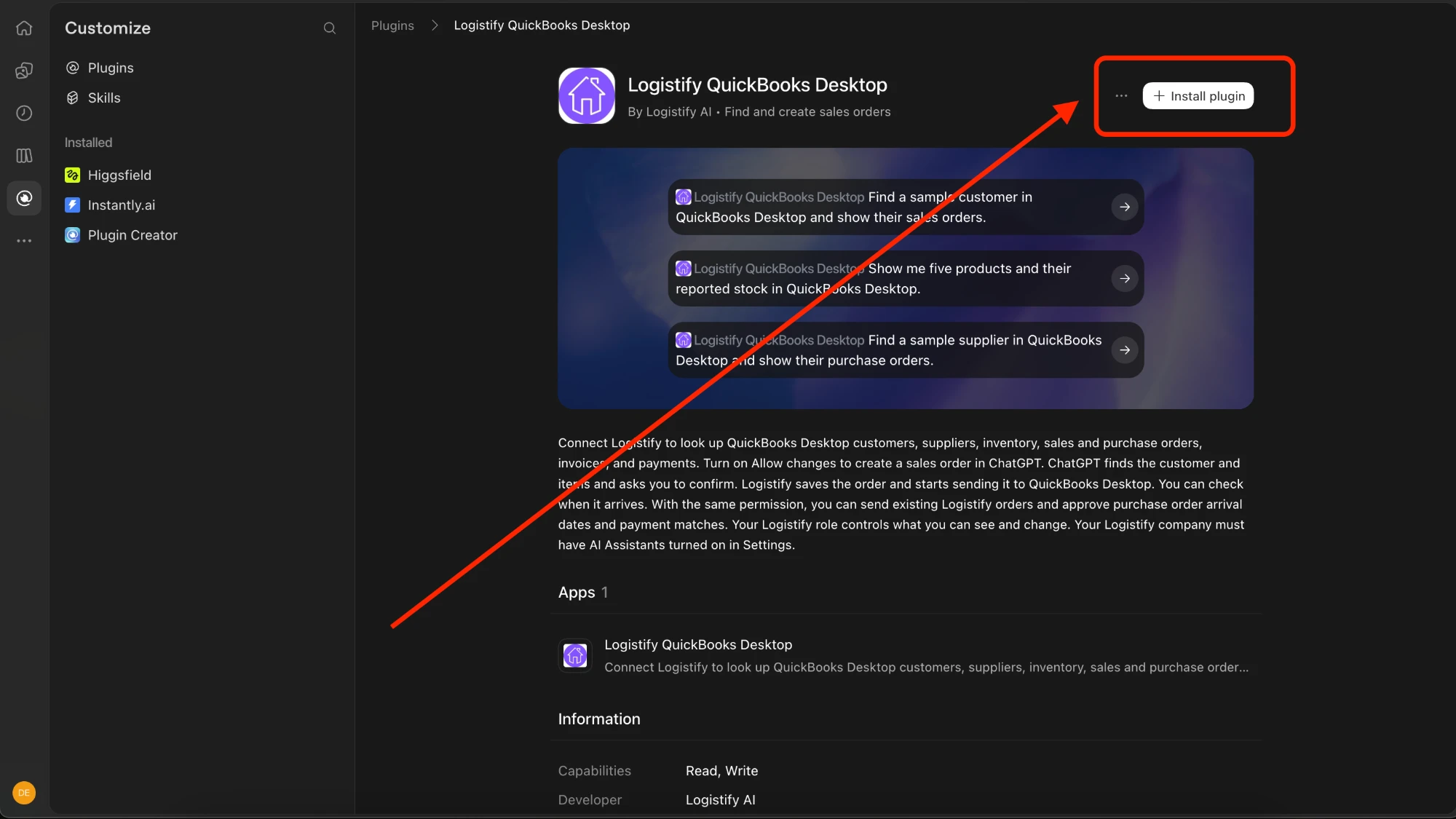
- 2Search for QuickBooks Desktop and select Logistify QuickBooks Desktop, by Logistify AI.
- 3Select Install plugin, then sign in with your Logistify login and choose your company.
- 4Tick Allow changes on Logistify's connect page if ChatGPT should be able to make changes. Left unticked, it can read but can't change anything.
Or Add It by Its MCP Server Address
A ChatGPT workspace admin can also add it as a custom MCP server. OpenAI's help says custom MCP connections are for ChatGPT Business and Enterprise/Edu workspaces on ChatGPT web, and that on Business only admins and owners can add and publish them (checked November 3, 2026).
- 1In ChatGPT, open Plugins, select the plus button, then Add custom MCP server.
- 2Name it Logistify for QuickBooks Desktop, enter https://mcp.logistify.ai/quickbooks-desktop/mcp, and choose OAuth for authentication.
- 3Accept the risk warning, select Create as a plugin, and review the tools ChatGPT finds.
- 4An admin or owner publishes it for the workspace. The first time a member uses it, the Logistify sign-in opens, and they choose the company and whether to tick Allow changes.
If you'd like help with any of these steps, talk to us and we'll walk your admin through it. We keep the current setup steps on the QuickBooks Desktop plugin page.
How Do You Connect Claude Code or Codex?
Claude Code and Codex add it as a remote MCP server from the command line. You then sign in with your Logistify login the same way, choose the company, and decide whether to tick Allow changes:
- Claude Code: run claude mcp add --transport http logistify-quickbooks-desktop https://mcp.logistify.ai/quickbooks-desktop/mcp, then type /mcp in Claude Code, choose the server and sign in.
- Codex: run codex mcp add logistify-quickbooks-desktop --url https://mcp.logistify.ai/quickbooks-desktop/mcp, then codex mcp login logistify-quickbooks-desktop.
These commands follow Anthropic's Claude Code MCP documentation and OpenAI's Codex MCP documentation, checked November 3, 2026.
Who Can Connect, and How Signing In Works
Before anyone connects, a company admin turns on Assistant Connectors in Logistify, under Settings, Features. Turning it on means the company's QuickBooks data can be sent to OpenAI or Anthropic when its people use the connector.
For now, people with the Admin or Customer Success Manager role in Logistify can connect. Each kind of data also follows the role rules of the Logistify screen that shows it: invoices and payments follow Accounts Receivable, and suppliers and purchase orders follow the purchasing screens.
- 1The first time the assistant needs QuickBooks data, it opens a Logistify sign-in page.
- 2Sign in with your usual Logistify login.
- 3Choose the company.
- 4Decide on the Allow changes box. It starts unticked, and an unticked connection only reads. Tick it if you want the assistant to also create sales orders and send them to QuickBooks, send orders saved in Logistify, and approve purchase order date updates and customer payment matches, asking you before each one.
- 5Select Connect. Logistify checks your access, and if it refuses, the page says why, for example that Assistant Connectors isn't turned on yet.
- 6Confirm on the consent screen. You're back in ChatGPT or Claude, and the connector is ready.
Each connection works with one company. To work with another company, connect again and choose it.
Logistify for QuickBooks Desktop comes with the Starter plan, $99 a month per company, and is included in the Core, Business and Enterprise plans.
What It Doesn't Do
- It creates sales orders in QuickBooks but no other record: no invoices, bills, items, customers or purchase orders, and no edits or deletes.
- It doesn't change anything unless the person who connected ticked Allow changes, and it doesn't make a change without asking first.
- It doesn't record a payment of its own choosing. It approves a match Logistify suggested, and Logistify records the payment.
- It doesn't change quantities or prices on purchase orders. A date update changes the expected date only.
- It doesn't read service or non-inventory items, bills, financial reports such as profit and loss, or the full chart of accounts.
- It doesn't reach QuickBooks while QuickBooks is closed. QuickBooks has to be open on the company's Windows computer to read QuickBooks data and for changes to reach the company file. If it isn't, the assistant says QuickBooks didn't answer in time and suggests checking that computer. Logistify's own lists still work.
- It doesn't give company totals. Results come a page at a time, so use a QuickBooks report when you need a total.
- It's listed in ChatGPT's plugin directory but not yet in Anthropic's Connectors Directory, so in Claude you add it by its web address.
- It covers QuickBooks Desktop only. QuickBooks Online and Intuit Enterprise Suite have Intuit's own connectors.
- It isn't made or endorsed by Intuit, OpenAI or Anthropic. Logistify builds and runs it.
Where Does Your QuickBooks Data Go?
Logistify reads each answer live from QuickBooks, through the connection your company already uses with Logistify, and hands it to the assistant. What the assistant reads is sent to OpenAI or Anthropic and handled under the terms of your ChatGPT or Claude plan. Results leave out addresses, email addresses, phone numbers, notes, bank details, card details, custom fields and tax details.
Section 4 of our Privacy Policy covers what the connector collects, who receives it and how long it's kept. Check your company's rules on AI tools before the admin turns it on. Our guide to read-only access for integrations in QuickBooks Desktop covers what else to review in the company file.
How Do You Disconnect It?
Any of these stops the connector, for reading and for changes, on its next request:
- Disconnect it in ChatGPT's or Claude's settings.
- In Logistify, open the company, go to Settings, ChatGPT and Claude, Connected assistants, and select Disconnect. The list shows only the open company's connections.
- A company admin turns off Assistant Connectors, which stops every connection.
- The person leaves the company in Logistify.
If something doesn't work, our support page lists common problems and how to reach us.
When You Need the Work Done
The connector lets you ask about the company file, create a sales order you describe in chat, and send or approve work Logistify has already prepared. The steady flow of that work is the job of Logistify's managed services in the same QuickBooks Desktop file: the Sales Order Service turns customer purchase orders into sales orders, the Accounts Receivable Service matches bank payments to open invoices, and the Procurement Service follows up with suppliers on open purchase orders.
For the other ways to use AI with a Desktop file, see our guides to using ChatGPT or Claude with QuickBooks Desktop and to QuickBooks Desktop MCP servers.
Frequently Asked Questions
On QuickBooks Desktop?
Logistify for QuickBooks Desktop connects ChatGPT and Claude to company files connected to Logistify, for questions, for creating sales orders in chat and for sending orders to QuickBooks. Tell us about your QuickBooks Desktop setup and what you'd ask ChatGPT or Claude first.